

Parts do not come from a long complaint; they come from a clear trail. When a request says which device is in which room, what the screen or light is doing, what changed last and what has already been tried, the technician can pack closer to the real job.
A short note can save a second trip
A lot of wasted service time starts with a sentence that is too thin: TV not working, register down, Wi-Fi bad, phone broken. The technician can still diagnose it onsite, but the first visit becomes slower because the truck was packed for a mystery.
Service map: Good note order: place, device, visible symptom, recent change, tried step, wanted finish and safe photos.
A plain room walkthrough is enough: the wall TV over the console, the HDMI input that now says no signal, the router replaced yesterday, the reboot that did not help, the result you need before the visit is done. That kind of note changes what lands in the truck: ladder or no ladder, HDMI adapter or network cable, spare power supply or only a tester.
Meaning line: The best request reads like a quick walk-through of the job, with private screens, account details and customer records left out of the frame.
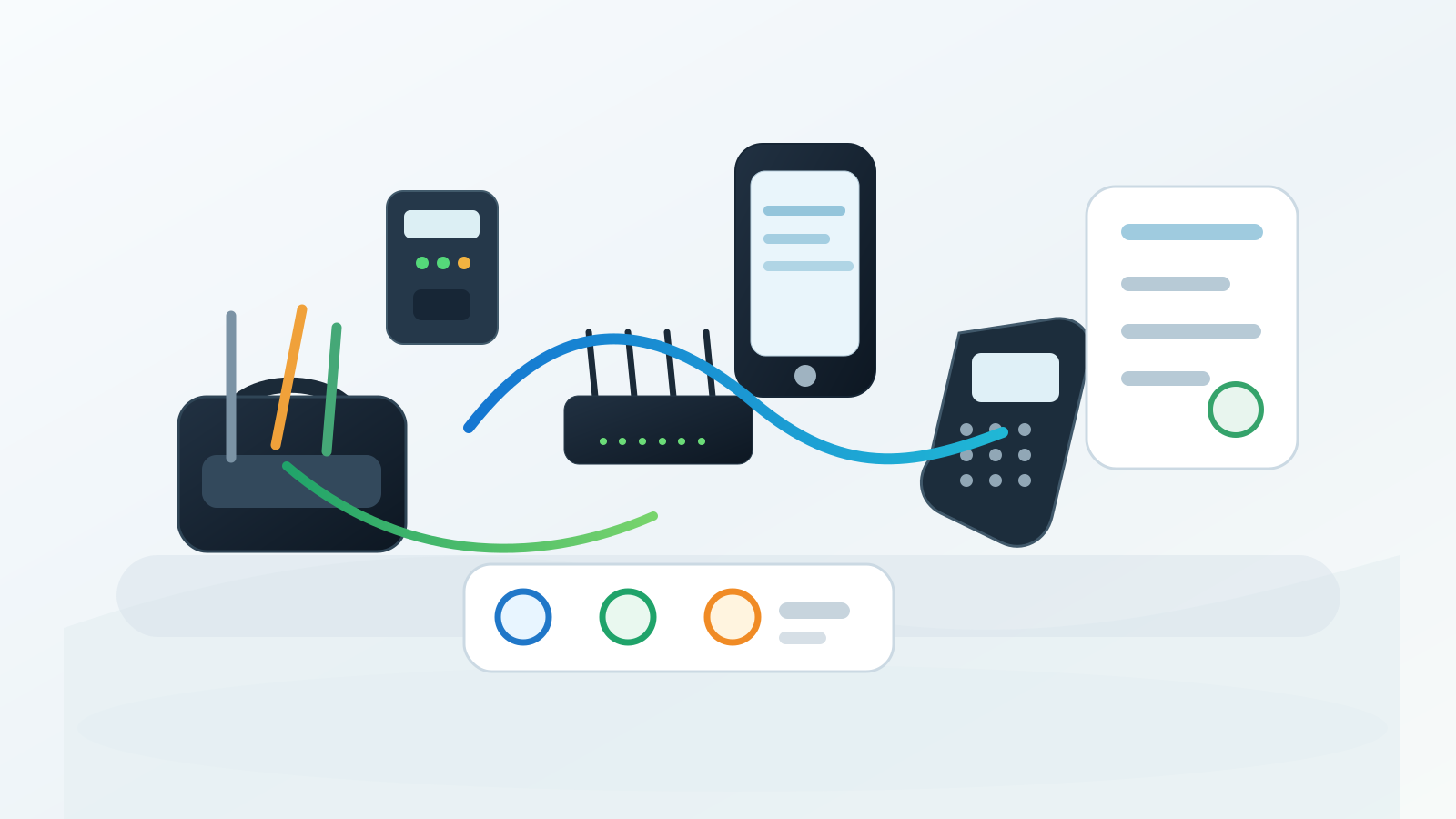
Five fields are enough for most service requests
Use the same five fields every time. Start with a real place and a real device: living room TV, front counter payment terminal, office monitor, network closet router, side-table captioned phone, patio access point. The room is not filler. It hints at ladder height, cable length, access permission, counter space and what the technician can safely move.
Next, copy the symptom as it appears. "No signal on HDMI 2" is more useful than "TV is dead." "Printer joins Wi-Fi but cannot print from the register" points to a different path than "printer will not power on." The wording on the screen, the light pattern on a modem, or the point where the workflow stops usually carries the first clue.
Write these five lines when booking
- Device and location: the equipment and the spot where it sits.
- Exact symptom: screen message, light pattern, sound, missing input, offline status or failed step.
- Recent change: move, update, outage, new router, replaced cable, mounted TV, new login or equipment swap.
- Already tried: reboot, different cable, other outlet, app reset, alternate remote, known-good device or provider call.
- Wanted finish: reconnect it, mount it, replace a part, hide the cable, restore Wi-Fi, test a call, prove signal or document a failed device.
This format still works when the customer does not know the technical name. A line like "office monitor, right desk, says no signal after the computer was moved, HDMI and power were reseated, needs the right cable or dock checked" is not fancy. It is just useful. It gives the technician a better truck plan than three paragraphs of frustration.
Field photos for service access and closeout context
In How to Describe a Tech Problem So a Technician Can Bring the Right Parts and Tools, this visual section is supporting evidence, not a private workorder claim. Use the field photos for service access and closeout context to compare visible hardware, access, cable path, screen privacy and closeout context before deciding what belongs in the next onsite step.


Copy the symptom, but protect the private parts
Symptom photos are valuable when they show a generic failure state: no signal, offline, not paired, no dial tone, weak connection, low battery, missing input, cable disconnected or a plain service message. The picture helps the technician decide whether the first check is power, input selection, account activation, signal path, cable type or device failure.
The same photo becomes unsafe when it includes a password, phone number, address, account email, bill, payment screen, camera view, medical note, caption content, private message or full serial label. Public article photos and routine intake should show the symptom without turning a support request into a privacy leak.

Symptom-photo rule: Photograph the error or visible behavior only when the frame stays safe. If the screen shows a login, order number, contact list, activation code or private camera view, write the symptom in the note instead of posting the image publicly.
Hardware detail changes the parts in the bag
Many service delays come from missing physical details. A monitor may need HDMI, DisplayPort, USB-C, VGA, a power brick, a VESA adapter, a stand screw, a dock or a longer cable. A TV may need a different bracket, spacer, optical cable, eARC-capable HDMI cable, low-voltage pass-through or stud hardware. The request does not need to solve the problem, but it should reveal the connection family.
A port photo helps when it is framed tightly enough to show the connector shape and device side, but not so tightly that orientation is lost. Including the nearby mount plate, wall plate, cable end or adapter often matters more than another close-up of the brand name.

Power, cable and network boundaries belong in the description
Plenty of visible failures sit one device away from the item the customer notices. A streaming box fails because the outlet is switched off. A camera is offline because the PoE switch lost power. A phone cannot receive calls because the gateway is active but the phone cord is in the wrong jack. A payment terminal works on Wi-Fi but not on Ethernet because the wall port is not patched.
For that reason, include the nearest power source, cable type and network handoff when they are part of the setup. Photos of the outlet, power strip, coax splitter, Ethernet patch, gateway shelf or adapter cluster can prevent a visit from starting with the wrong assumption.
Physical details that change the plan
- Outlet location, switched outlet behavior, crowded power strip or missing nearby power.
- Cable family: HDMI, DisplayPort, USB-C, Ethernet, coax, optical audio, phone cord or barrel power.
- Wall plate, cabinet, rack, furniture or ceiling access that may block the work area.
- Device mount, bracket, stand, adapter, shelf or special screw pattern.
- Provider handoff, gateway, switch, router or access point that affects the failed device.
What changed is not small talk
The recent change narrows the search. A new router can break printers, cameras, smart TVs, captioned phones and payment devices even when the internet itself feels fine. A mounted TV can turn a working streaming setup into an HDMI-length or input-selection issue. A power outage can expose a weak battery backup, a switched outlet or a device that never rejoined the network.
Good change notes are simple: "moved the TV yesterday," "Comcast gateway was replaced Monday," "new soundbar added," "store counter was rearranged," "camera worked before the siding repair," "remote support changed Wi-Fi name," or "device was unplugged for painting." None of those notes require diagnosis. They give the technician the first branch of the tree.
Already-tried steps prevent wasted repetition
Basic verification still happens onsite, but the request benefits from a record of what already happened. Rebooted modem twice, tried a different HDMI input, tested another outlet, called the provider, changed batteries, swapped remote, reseated Ethernet, tried another laptop, or restored an app setting are all useful facts.
The key is to list tried steps without turning them into conclusions. "Tried a new HDMI cable and still no picture" is a fact. "The TV is bad" may be a guess. Facts help the technician decide which tester, adapter or replacement part belongs in the kit; guesses can send the work in the wrong direction.
A parts-ready request includes the intended result
The desired outcome sets the finish line for the job. Restore live TV, move a monitor to a dual-display dock, mount a screen on an arm, reconnect a camera to local recording, place a captioned phone near a recliner, clean up visible cables, replace a failed adapter or document that a device needs replacement are different visits.
A clear outcome turns a generic tool bag into a better-prepared kit. The plan may include short and long HDMI cables, a DisplayPort adapter, coax compression fittings, Ethernet patch cords, wall anchors, VESA screws, a PoE tester, cable toner, power supply options or a small label kit. The goal does not guarantee the fix, but it keeps the visit pointed at the right finish line.

Do not send private data just to be helpful
Helpful intake has a privacy boundary. The technician may need to know the device model, provider, room, cable type and symptom. The technician usually does not need a public photo of a password, full serial number, QR activation code, billing page, customer account, card reader screen, phone number, call log, camera recording, caption text or private document.
If a serial number, MAC address, account screen or activation code is genuinely required, it belongs in the secure channel that asks for it, not in a public article, shared gallery or casual text thread. For most onsite work, a cropped model area, a connector photo and a plain written note solve the planning problem without exposing private information.
Leave these out of routine public photos
- Passwords, recovery codes, QR activation codes, barcodes and full serial numbers.
- Account pages, bills, service addresses, payment screens and order details.
- Phone numbers, call logs, private captions, messages, medical notes and caregiver documents.
- Faces, license plates, private camera views and unrelated room details.
- Provider status claims that only the account owner or provider can confirm.
A copyable request template
One short message is enough: "Office monitor on right desk shows no signal after computer was moved. It uses DisplayPort through a dock. Power light is on. I tried rebooting the computer and reseating the cable. Need the monitor working again and can approve a replacement cable or dock test. Photos attached: back of monitor, cable end, dock, outlet and desk clearance."
A home TV version reads: "Living room TV says the cable box asks for an unused cable box to be turned off before live TV works. This started after the box was moved for cleaning. Remote batteries were changed and the TV input was checked. Need live TV restored and cables cleaned up behind the stand. Photo attached of the message and the back of the box; no account screen included."
For network or phone work, the same pattern holds: "Side-table captioned phone powers on but cannot place calls after gateway replacement. Internet works on laptops. Phone cord is connected near the gateway, but I am not sure which jack is active. Need outgoing and incoming call tested at the normal chair. Photos attached of gateway area, phone location and cable path; no phone numbers or call logs."
Closeout should match the request
A clear request also makes closeout easier. If the desired result was live TV, the closeout should show the correct input, working source and remote handoff. If the request was a monitor setup, the closeout should prove the display wakes, the mount or stand is stable, the cable has strain relief and the user can repeat the workflow. If the issue was network handoff, the closeout should separate local cabling from provider activation or account status.
The final note records what changed, what was tested and what remains outside the technician boundary. That might be provider activation, a replacement part the customer declined, a wall opening not approved, a device warranty issue or an account login the customer needs to finish. Good documentation protects the customer and the next technician.
The practical standard
A strong problem description does not try to diagnose everything before the visit. It gives the technician enough physical context to arrive prepared and enough privacy discipline to avoid exposing the customer. Device, symptom, change, tried steps, outcome and safe photos are the working standard.
That standard keeps real projects from turning into guesswork. The appointment starts with a likely device path, likely parts, likely tools and a clear finish line. The technician still verifies the site, but the first hour is spent solving the right problem instead of discovering what the request meant.
Before booking: Before booking, send one wide area photo, one close device photo, the exact symptom, what changed recently and the outcome you need.
Problem description cheat sheet
| Question | Check first | Useful proof | Decision cue |
|---|---|---|---|
| What fails? | Name the device, task and exact symptom | One sentence in plain language | Vague symptoms lead to the wrong tools |
| Where does it fail? | Room, lane, desk, cabinet or outdoor area | Location note and optional wide photo | The affected area needs ladder, lift or after-hours access |
| When did it start? | After move, update, outage, new device or no known change | Timing note | Recent changes point to configuration or cabling |
| What still works? | Compare with another device, lane or room | Working comparison note | If nothing works, the visit starts at power or internet handoff |
A useful problem description narrows the first test before anyone opens a tool bag.
Technician cheat sheet
Write the issue like a dispatch note
The most useful request says what failed, what changed, which devices are involved, what was already tried and what proof photos are available.
Pages that clarify the scope
Share this article:
Facebook X LinkedIn Email Text Add comment
Need help with a similar setup?
Send photos of the wall, network equipment, device labels you can share safely, and the result you want. The service team can usually narrow the right next step before an onsite visit.
Plan a cleaner service visit
Send a wide photo, one close device photo, the cable path and the result you want. Leave out account screens, addresses and private labels unless they are safely covered.
Request a callFeatured service

Field Service Blog Guide: TV, Wi-Fi, POS, Security and Onsite Support
Use this guide as a dispatch map for the real problem in front of you: screen, cable, Wi-Fi, POS lane, rack, camera, phone or onsite support visit.
View servicesRelated articles
Comments
Reader notes and service questions
No approved comments yet.
Leave a comment